
How to migrate from UiPath to Power Automate?
Updated: Aug 7, 2025
Key Considerations for a Successful Transition or Conversion
Migrating your RPA workloads from UiPath to Microsoft Power Automate Desktop (PAD) can be a strategic move—whether you're optimizing licensing costs, consolidating RPA platforms, preventing vendor lock-in, or leveraging Microsoft ecosystem benefits. Unfortunately, this transition is more complex than a simple lift-and-shift. Ultimately, each RPA software is proprietary and not designed with compatibility and interoperability in mind. To ensure a smooth and successful migration, it's critical to perform a thorough pre-migration audit and develop a well-structured plan.
In this article, we’ll walk you through key considerations and potential pitfalls when preparing to migrate from UiPath to PAD. From identifying non-transferable components to mapping complex workflows and business logic, we’ll highlight what to look out for during the planning phase—so you can avoid disruptions and maximize ROI from your automation investments.
Before we dive in, here are a few quick points to highlight:
This analysis is performed using UiPath Studio version 2024.10.14 LTS and Microsoft Power Automate Desktop version 2.55.158.25087. As the capabilities of the RPA platforms are continually evolving, it is important to check the official documents of both UiPath and Microsoft on the latest features and functionalities.
In addition, we are mainly focused on automation created with UiPath Studio, not UiPath StudioX or UiPath Studio Web. Similarly, for Microsoft, we are interested in desktop flows created using Microsoft Power Automate for desktop and not cloud flows via https://make.powerautomate.com/
For PAD, we will exclude premium activities which require a paid subscription plan (Power Automate Premium).
Our analysis will be broken down into the following key topics:
Variables and Data Types
Variable Scope – Local vs. Global
Missing Data Types
String Typing vs. Implied Typing
Control Flow
Flowcharts and State Machines
Sequences
Parallel
Trigger Scope
Activity-to-Action Mapping
Premium-Only Actions
Imperfect Mapping
1-to-Many Mapping
Missing Functionalities
Selectors
Selectors vs. UI Elements
Exception Handling
Try Catch vs. On Block Error
Throw and Rethrow
Global Exception Handler
Error Message
Specifically, we will highlight the key differences between both platforms that you need to be cognizant of. Where possible, we will provide concrete examples to illustrate the point as well as potential remedies. With that in mind, let’s get started.
Variables and Data Types
Variable Scope – Local vs. Global
UiPath allows you to define the scope of each variable, e.g. you can restrict the usage of a variable to a particular sequence or workflow, in effect creating local variables. For example, it is perfectly valid to create 2 different variables of the same name but with different scope (and possibly data type). In PAD, there is no such concept of scoped variables. Essentially, all variables are global and can be accessed from anywhere within the same desktop flow, even across different sub flows.
AI Insights: Variable scope differences require deliberate handling as there is a high risk of naming conflicts, especially when migrating from workflows that reuse variable names locally. Failure to do so may inadvertently break the business logic and result in unintended data overwrites.
Missing Data Types
UiPath supports a multitude of data types, including complex .NET types and custom classes. In PAD, the supported data types are much more limited, namely text, numeric, boolean, list, datatable, datarow, custom object, and connector object. Issues will arise, for example, when SecureString variables are created to handle passwords in UiPath because there are no such equivalents in PAD. Worse still, using the implicit data type in PAD (i.e. text) is not a good security practice.
AI Insights: Prior to any migration, it is vital to identify all variables whose data types cannot be mapped exactly and to identify the most appropriate equivalents.
Strong Typing vs. Implicit Typing
A common frustration among UiPath developers transitioning to PAD is the lack of explicit typing. In UiPath, developers can define variable types directly. In contrast, PAD infers variable types from the context or the output of an action—there is no way to arbitrarily declare a type. For instance, you cannot create a boolean variable unless you assign it a true or false value, and all user inputs are treated as text by default. This implicit typing can complicate certain operations—such as using booleans or integers in expressions—because you must ensure the variable was previously set with the correct type.
AI Insights: Implicit typing in PAD requires careful sequencing of actions to ensure that all variables are initialized with the correct type before use.
Control Flow
Flowcharts and State Machines
UiPath supports the creation of complex workflows using a mixture of sequences, workflows and state machines. Indeed, the popular and commonly adopted Robotic Enterprise Framework (REFramework) incorporates all 3 control flow elements in its design. On the other hand, PAD flows are primarily linear sequences with no direct equivalents for workflows and state machines.

AI Insights: Since many UiPath projects today utilize the REFramework, it is helpful to have an equivalent framework in PAD such as the Power Automate Framework to standardize and streamline the conversion process.
Sequences
In UiPath, sequences are a fundamental building block used to logically organize related activities within a workflow. Although PAD provides a similar concept through the "Region" and "End region" actions, their usage often results in visually cluttered and harder-to-maintain desktop flows. As such, each migration requires thoughtful consideration—not all sequences should be mapped one-to-one. Instead, it’s critical to evaluate the intent behind each sequence and determine the best possible action (pardon the pun). For instance, if a sequence merely wraps all the activities within the Then branch of an If condition, replicating it as a region may add unnecessary complexity.
AI Insight: Not all UiPath sequences should be mapped directly—effective migration to PAD requires rethinking structure to avoid clutter and preserve workflow clarity.
Parallel
The “Parallel” activity in UiPath enables true concurrent execution of multiple branches, either until all complete or a defined condition is met—making it ideal for handling asynchronous logic and event-driven workflows.

In contrast, PAD offers only a limited form of parallelism: it allows a child desktop flow to run alongside its parent. However, this feature is constrained—only one parallel instance can run at a time, and child flows are not permitted to spawn additional parallel flows. These limitations make PAD unsuitable for replicating complex parallel logic as implemented in UiPath.

AI Insight: Workflows leveraging parallel activities in UiPath often require fundamental redesign in PAD, as its support for concurrency is highly limited and restrictive.
Trigger Scope
The activity “Trigger Scope” in UiPath provides powerful event-driven automation by allowing the robot to listen for various system events such as file changes, hotkeys, mouse actions, and more. When any of these triggers occur, UiPath can immediately execute a predefined sequence in response. This enables the development of highly responsive and dynamic workflows. In contrast, Power Automate Desktop (PAD) lacks native support for real-time event monitoring. It cannot independently listen for system-level triggers or initiate flows based on asynchronous events.
AI Insights: Should triggers be necessary, a cloud flow with the required triggers must first be created, followed by invoking the desktop flow to achieve similar event-driven behaviour. Note that this use case would require a paid Power Automate subscription plan.
Activity-to-Action Mapping
Many standard UiPath activities lack a direct counterpart in PAD, forcing developers to either redesign the process logic or implement workarounds—such as combining multiple actions, embedding scripts, or building reusable subflows. These approaches can lead to significantly more complex and harder-to-maintain desktop flows.
Premium-Only Actions
For example, consider the UiPath activity “Log Message”. While PAD offers a similarly named “Log message” action, it is a premium-only feature, available only with a paid subscription.

For users on the free plan, an alternative is to implement a reusable subflow that can replicate this activity. However, the downside is that the overall script becomes much more complex and verbose.

Imperfect Mapping
Even when this feature is accessible, the mapping is imperfect. Specifically, in UiPath’s “Log Message” activity, there are a total of 5 log levels–Trace, Info, Warn, Error, and Fatal. Whereas in PAD, the “Log message” action only has 3 log levels–Info, Warning, and Error. Consequently, this discrepancy forces developers to manually remap or consolidate log levels, often reducing the granularity and effectiveness of logging, and making debugging more difficult post-migration.
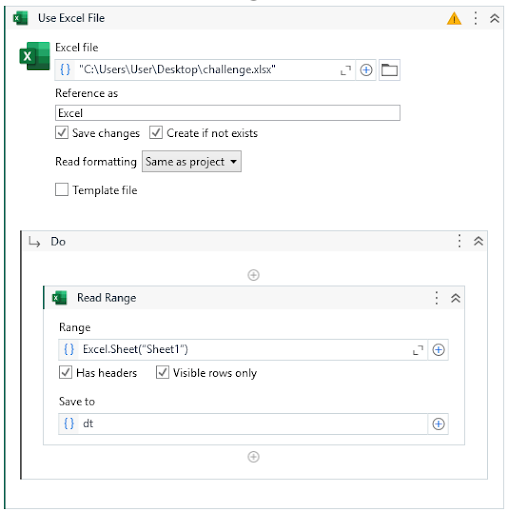
Let’s consider another common automation scenario–reading data from an Excel file. In UiPath, this would involve just 2 activities–”Use Excel File” and “Read Range”. The former allows us to specify the Excel file that we want to read while the latter reads all the data in a named worksheet into a data table variable.
1-to-Many Mapping
In PAD, you would need 3 actions–”Launch Excel”, “Read from Excel Worksheet” and “Close Excel”. The first 2 actions are similar to the aforementioned UiPath activities, but you need an additional 3rd action to explicitly close the Excel file. Needless to say, closing any file or application after use is a best practice that all RPA developers should observe.

To take this discussion further, one common activity that needs to be performed after reading the Excel data is to filter the data table to remove the empty rows. UiPath offers multiple ways to do this: from a straightforward “Filter Data Table” activity to more advanced options using LINQ expressions embedded in other activities like “Assign”. In PAD, the typical approach involves using the “Delete empty rows from data table” action. While this seems more streamlined, it also means that business logic in UiPath may be hidden within expressions, making such logic harder to detect and translate accurately during migration.
Missing Functionalities
Finally, there are entire categories of functionality in UiPath that are simply absent in PAD. For instance, UiPath provides dedicated activities for Excel pivot table operations such as “Create Pivot Table” and “Refresh Pivot Table”. PAD offers no equivalent. To replicate this, developers must fall back on custom VBScript or brittle UI automation, both of which introduce maintenance and compatibility risks. Ironically, given that PAD is part of the Microsoft ecosystem, one might expect stronger Excel integration—but in practice, UiPath still provides the more robust feature set.
AI Insights: Functional gaps between UiPath and PAD are significant and non-trivial. Effective migration requires rethinking process logic, addressing platform limitations, and often redesigning workflows to achieve equivalent automation outcomes.
Selectors
Selectors vs. UI Elements
Selectors in UiPath are represented as XML-like fragments. Each selector is essentially a hierarchy of UI elements (from root window to target element) described by tags and attributes in an XML structure.

In PAD, selectors, which are actually known as UI elements, use an attribute-value notation with a hierarchical “>” syntax instead of XML. They appear similar to CSS or jQuery selectors. Each level of the UI hierarchy is represented as “element[Attribute="Value"]” chained by “>” symbols. This notation lists the desktop or app window and then the child element with identifying attributes.

Both platforms ultimately rely on UI accessibility frameworks (Microsoft UI Automation or Active Accessibility) to obtain these element attributes.
Key differences between UiPath’s selectors and PAD’s UI elements:
Fuzzy Search: UiPath selector’s fuzzy search capabilities enable you to locate strings based on a pattern, rather than on an exact match. There is no such feature in PAD.
Anchor-based Search: In UiPath, you can search for a UI element by using other UI elements as anchors. This is often used when a reliable selector is not available. Likewise, there is no such functionality in PAD.
Full vs. Partial Selectors: Selectors in UiPath can be full or partial. Full selectors contain all the elements needed to identify an UI element, including the top-level window. Partial selectors, on the other hand, do not contain information about the top-level window. There is no such differentiation for UI elements in PAD.
Application/Browser Automation Scope: In UiPath, you need to use the “Use Application/Browser” activity first before you can implement any UI automation activities. There are no such requirements in PAD; however, for browser automation, you would implicitly need to have a web browser instance opened (e.g. via the “Launch new Chrome” action).
The above is just a simplified discussion of the differences between UiPath’s selectors and PAD’s UI elements. Drop us a comment below if you would like us to delve further into this topic in a subsequent post.
Exception Handling
Robust error handling is vital in RPA. The approach in UiPath and PAD is somewhat different.
Try Catch vs. On Block Error
UiPath provides a “Try Catch” activity where you can try specific exception types under “Catches” and define the “Finally” block. The equivalent in PAD is the “On block error” action, but there are a very notable differences:
PAD’s “On error block” does not differentiate exception types – it catches any error in that scope. You cannot have multiple catch branches for different exception types like in UiPath. All errors trigger the same error handler block. If this functionality is critical to your workflow, one workaround is to call a subflow in the error handler and let the subflow handle the various exception types.
As PAD lacks a “Finally” construct, workarounds are needed, e.g. putting cleanup steps both after a normal sequence and inside the error handler to ensure execution in all cases.
Interestingly, PAD includes built-in error handling for certain actions through the “On error” property, allowing developers to define exception handling at the individual action level. This level of granular control is not available in UiPath.
AI Insights: Exception handling is more limited in PAD as compared to UiPath—though it compensates somewhat with per-action error handling not found in UiPath.
Throw and Rethrow
Additionally, UiPath provides “Throw” and “Rethrow” activities to raise exceptions and propagate caught errors, respectively. Since PAD lacks an equivalent throw action, developers must deliberately trigger a failed action to simulate an error—an awkward and inelegant workaround. Ditto for rethrow. The same applies to rethrowing errors, which involves a more convoluted approach, such as setting a variable and checking it after the error-handling scope.

AI Insights: PAD lacks the capability to raise and propagate exceptions like in UiPath. If this functionality is critical to the business process, workarounds will be required.
Global Exception Handler
UiPath offers a Global Exception Handler mechanism – a workflow that automatically intercepts any uncaught exception at the project level. PAD has no global exception handler for desktop flows, so such logic will need to be replicated using a combination of “On error block” and subflows.

AI Insights: PAD lacks the Global Exception Handler that is available in UiPath. If this functionality is critical to the business process, workarounds will be required.
Error Message
In UiPath, errors are typically thrown as .NET Exception objects, which can be caught and inspected for details such as .Message, .Source and .StackTrace. In contrast, PAD does not provide a rich exception object. You will need to use the “Get last error” action to return an error type variable that provides six different properties: the name, the location and the index of the action that failed, the subflow that contains this action, and the details and the message of the action.
AI Insights: Unlike UiPath, which uses detailed .NET exceptions, PAD handles errors using an error object retrieved via the “Get last error” action which provides only six key properties.
Conclusion
Migrating from UiPath to Power Automate Desktop is a technically demanding process that requires more than a simple activity-to-action translation. Differences in how the platforms handle variables, control flow, UI interaction, and exception management mean that a successful migration often involves rethinking and redesigning workflows.
While PAD offers a compelling option—especially for organizations interested in a cost-effective software—it lacks several advanced features found in UiPath. As such, identifying non-transferable components, anticipating functional gaps, and preparing viable workarounds are essential to ensure a seamless transition without compromising automation integrity or business logic.
![[Part 1] 8 ways to boost the ROI of your RPA program – How to slash your RPA subscription fees](https://static.wixstatic.com/media/543885_85e2e61b45a94a199ab64b2016a7da2a~mv2.jpg/v1/fill/w_1079,h_603,fp_0.50_0.50,q_30,blur_30,enc_avif,quality_auto/543885_85e2e61b45a94a199ab64b2016a7da2a~mv2.jpg)
![[Part 1] 8 ways to boost the ROI of your RPA program – How to slash your RPA subscription fees](https://static.wixstatic.com/media/543885_85e2e61b45a94a199ab64b2016a7da2a~mv2.jpg/v1/fill/w_880,h_492,fp_0.50_0.50,q_90,enc_avif,quality_auto/543885_85e2e61b45a94a199ab64b2016a7da2a~mv2.jpg)


Comments